The fastest way to add 'Build a Website in a Day' to your services
Create detailed service pages with unlimited content and checkout functionality.
When using other competitors and wanting to list your services. You're typically left with just the ability to write about 2 sentences and have a call to action button and then you must send the reader to another link.
That's not how we do it here at Julip. You don't need another website or landing page. You can house it all right here in your Julip.
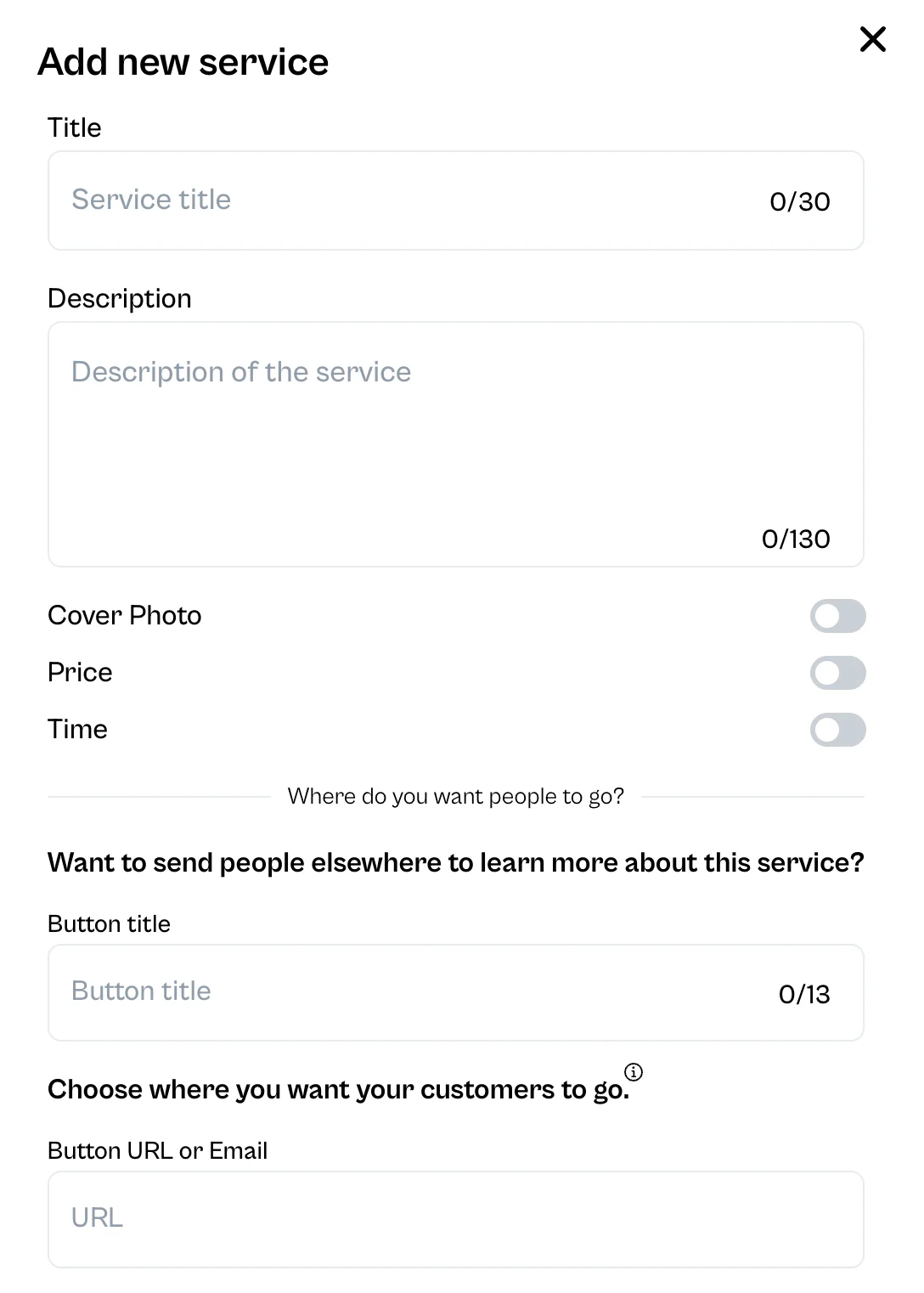
When you go to your services tab, and select (+) add new service this is the pop up you'll see.
Now there are certain items required:
- Title
- Description
- Button Title
- Button URL or email
- For the URL it must start with Https://
Now the fun part is to customize your service…
Your Cover Photo
We suggest a more horizontal image. We find services that have photos are more intriguing, just make sure it's branded.
Price
Only list a price if you'd like to share your rates for the service or for the item you're selling. If you don't want to add a price, keep this toggled off.
PLEASE NOTE: for the 'Add More Info + Checkout'. If you want people to buy from your Julip services checkout page, you will need to add a price to allow the user to purchase via Stripe.
Time
This is if you offer a service that is timed. For example, if you were a dog walker. You could list 15 minute, 30 minute or 1 hour walks.
Now, if you do not want to add more info to your service or a checkout. Then you'll need to add an email or URL to send your customer to. That will automatically turn off the ability to add an 'Add more info + checkout' page
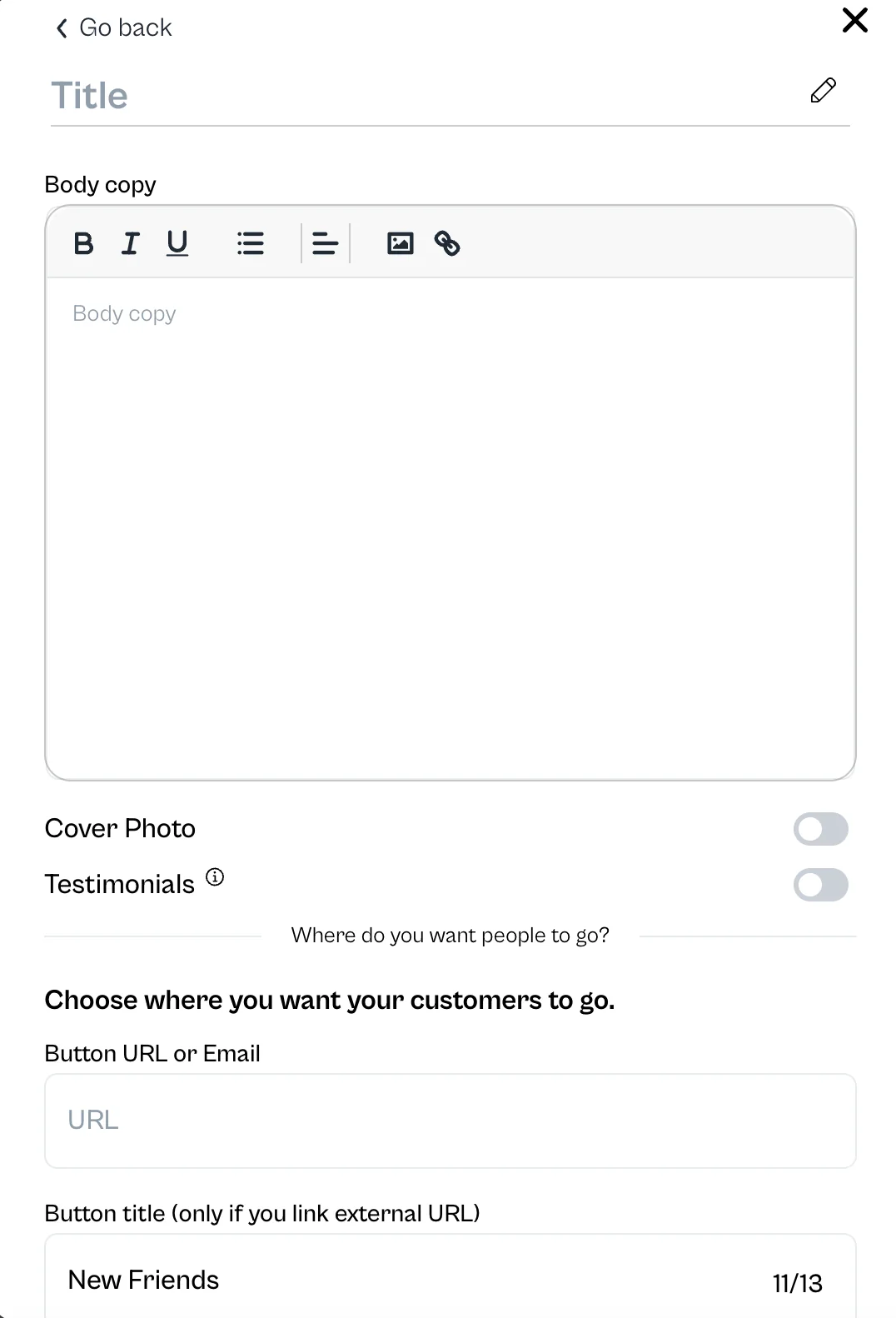
IF YOU DO WANT to add an 'Add more info + checkout' page, then you CAN'T add an email or URL here. You'll do it on the next page.
The Add More Info + Checkout Page
The reason we added this feature is to allow you unlimited space for text, images, hyperlinking, testimonials and the ability to add a check out feature.
The page looks slightly different, but there are big changes.
- You can add a new title for this page to get more specific.
- As much copy as you'd like about your service, images, bullet points, font formatting and hyperlinks.
- Another cover photo, which I love on this page.
- Then unlike the original landing page, you can add testimonials for this specific service.
- You'll need to add the testimonial on the main Service Tab page first. So we recommend completing that step first if you plan on adding 'Add More Info + Checkout' pages
- Then you're presented the option again about what the button copy will read and where you want the user to go.
- If you don't want to charge your customer, add a link to send them to or your email
- If you're charging customers here, if you select the embed checkout form, you'll be presented to edit/send a confirmation email. We've created a pre-populated template, but feel free to make edits.
How to set-up checkout in your Julip services tab
If you want to get paid directly within Julip (And we don't take a cut!) you can connect your stripe right inside of Julip.
If you haven't done this step it's very easy!
Go to the Settings Tab and scroll to the bottom and you'll see this ⤵️
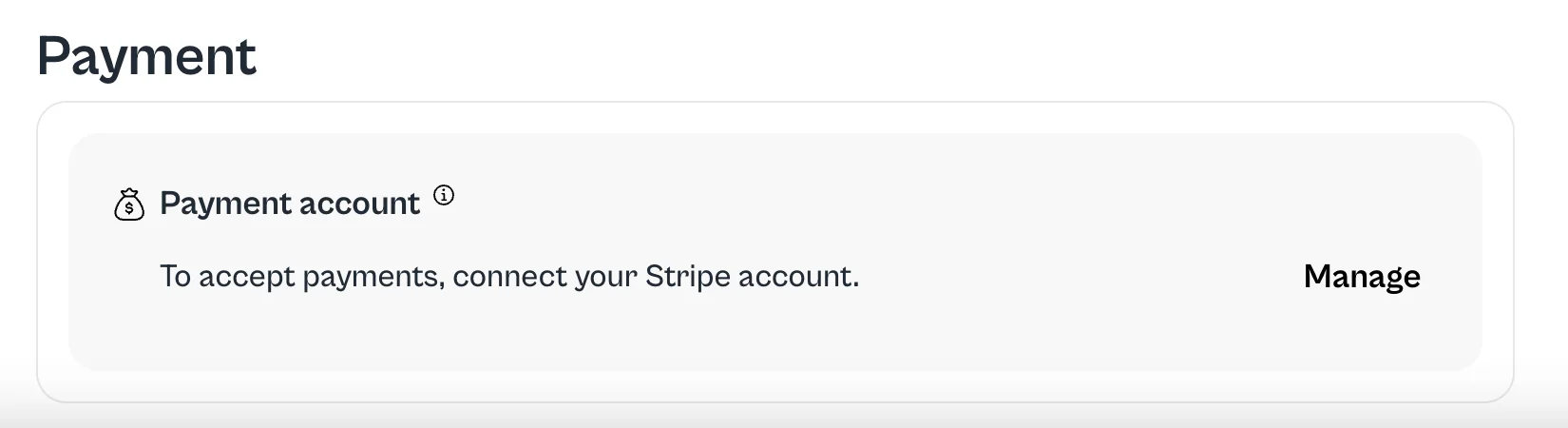
From there you can connect your Stripe account.
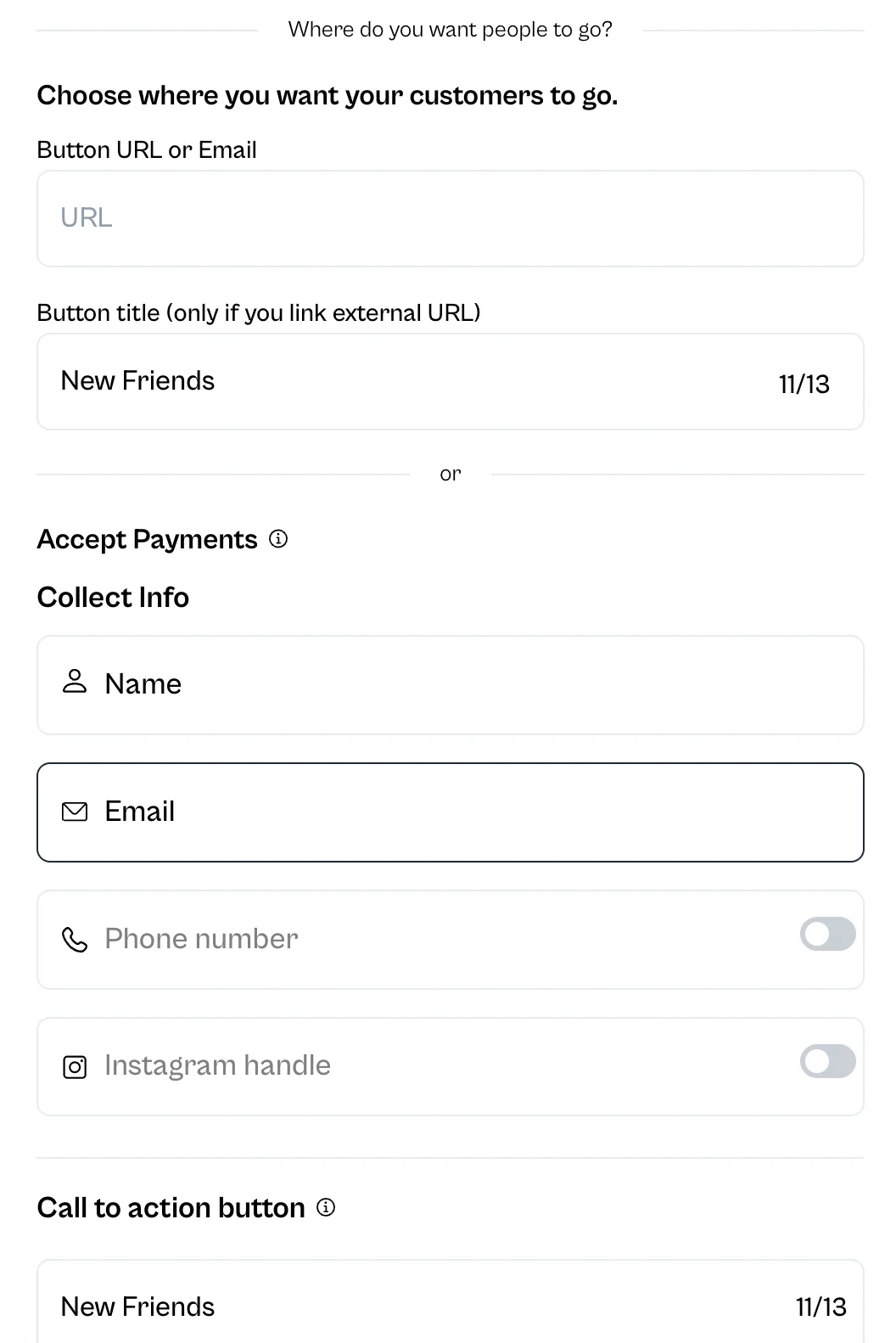
All right, now if you want to add the checkout feature, you cannot add a URL or email address. You can only send them to the checkout feature.
As you can see there is an 'OR' option giving you the choice of one or the other.
If you decide to choose the checkout option, you automatically will be collecting their name and email address.
And that's it!