The fastest way to add 'Build a Website in a Day' to your services
Customize your tabs to make your Julip truly your own.
There are a lot of cool things about Julip and one of my favorite parts is the customization of tabs and making them your own.
Here are 4 examples of Julip to see the range of customization:
Alana | UGC creator
Alana kept the template of the tabs the same as set from the start.

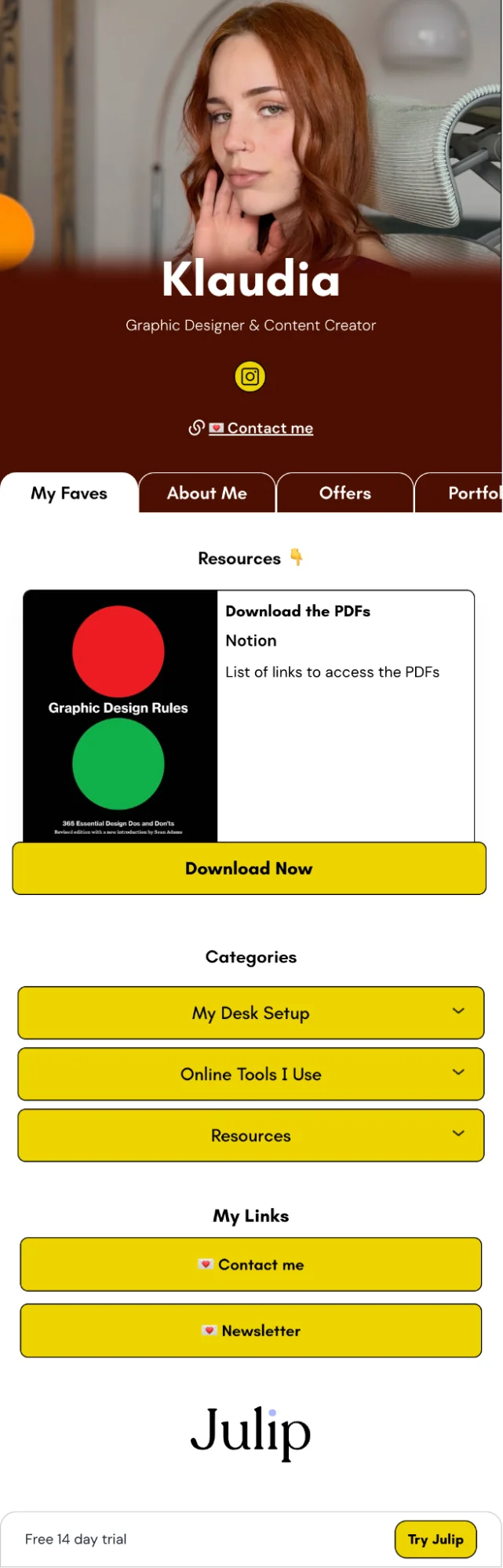
Klaudia | Graphic Designer + Creator
Klaudia is similar to Alana, in using the tabs as they were meant to be used but customized the name of the tabs.
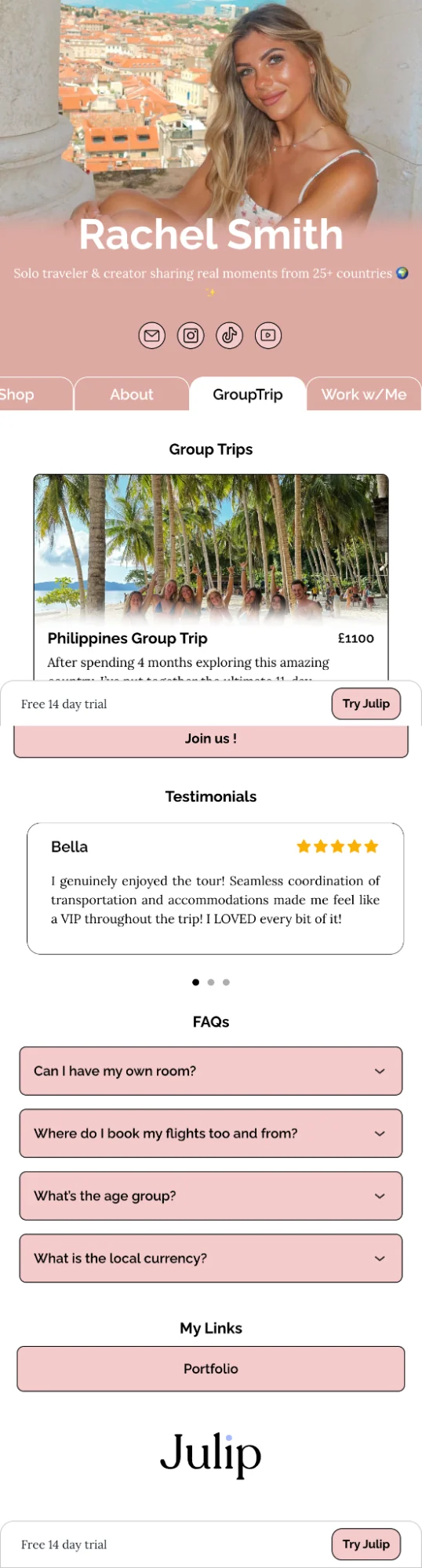
Rachel | Travel Creator + Retreat Host
Rachel got really creative with her Julip and utilized the services tab to sell an upcoming retreat.
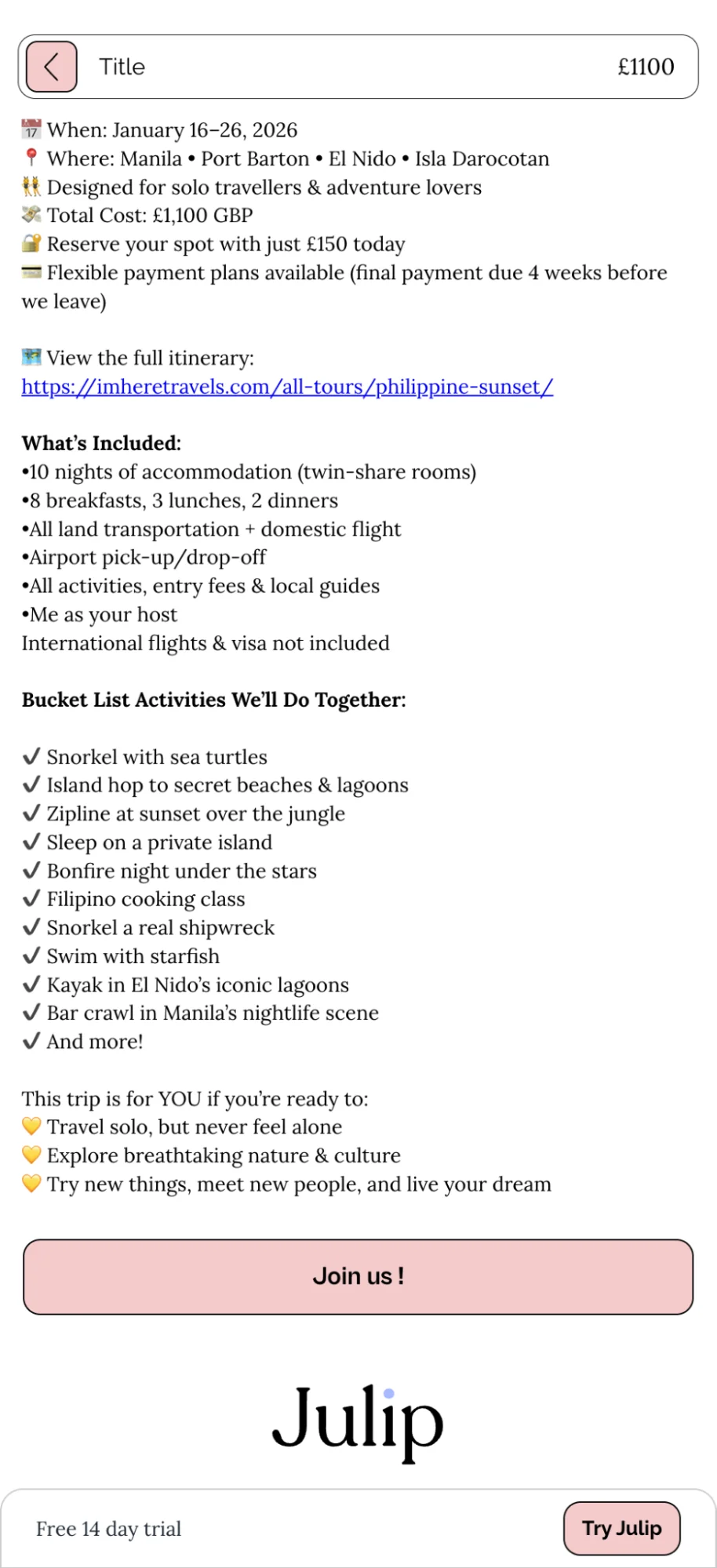
She renamed the tab to 'Group Trip' and when someone clicked the Join Us! button they were redirected to the Julip Sales page where she could share more details about the trip without paying for another site. AND she was able to accept payment via stripe for the trip.
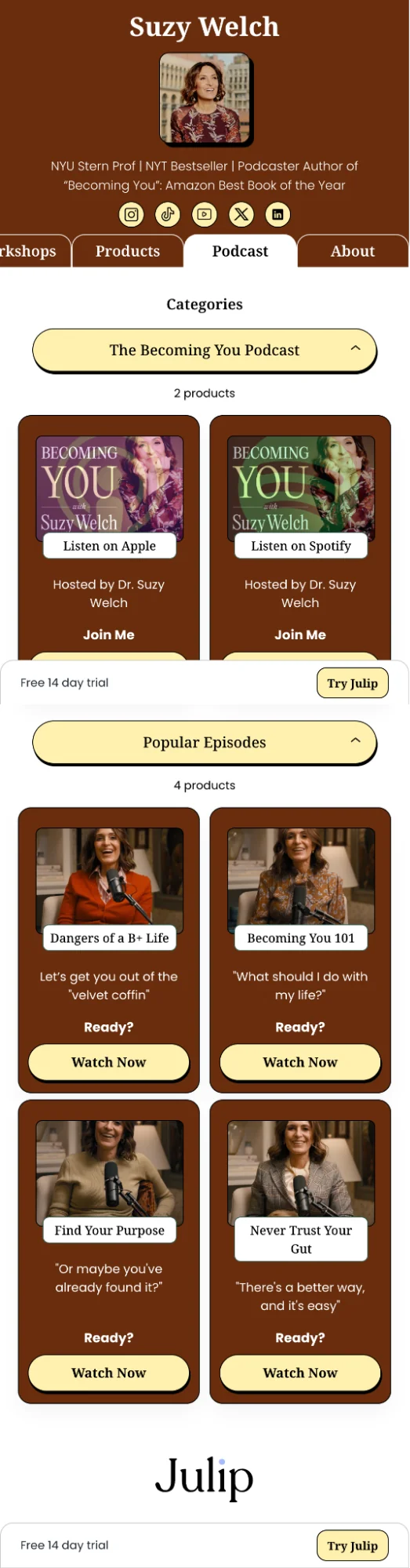
Suzy Welch | New York Times Best Selling Author + NYU Professor
Suzy got really creative with the use of all her tabs. She changed all her tabs except the about me page.
What I really loved about her Julip is how she used the 'Shop' tab to promote her podcast episodes seamlessly.
Now on to how to edit, move or remove a tab.
Let's start with editing ✍🏼

To edit, all you need to do is click the little pencil icon on the top right of each tab to rename the tab.
Please note: you're limited to 9 characters. We did this purposely so your Julip never looks smushed.
Adjusting the order of your tabs
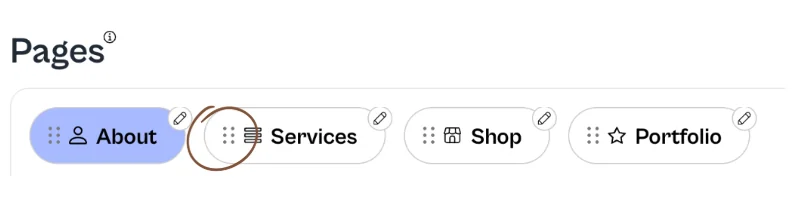
Throughout Julip you'll see these 6 dots circled above. That means that item can be ordered by drag and dropping.
So when you click or tap on this you'll be able to drag and drop to reorder the tabs.
Hide a tab

At the bottom of each tab, you'll find a 'Hide this page' toggle. This is what it looks like when a page is visible.
This is what the toggle looks like when you've turned on 'Hide this page'