The fastest way to add 'Build a Website in a Day' to your services
Share unique links to specific pages, services, digital products, and booking links.
Sometimes you just want to send your potential customers to a direct link versus having them explore your entire website.
Here's how to share individual links of your pages, services, digital products, or calendar links.
Pages
This is a great feature if, for example, your Services page is your third tab in your Julip, but in this case you want it to be the first thing your customers see.
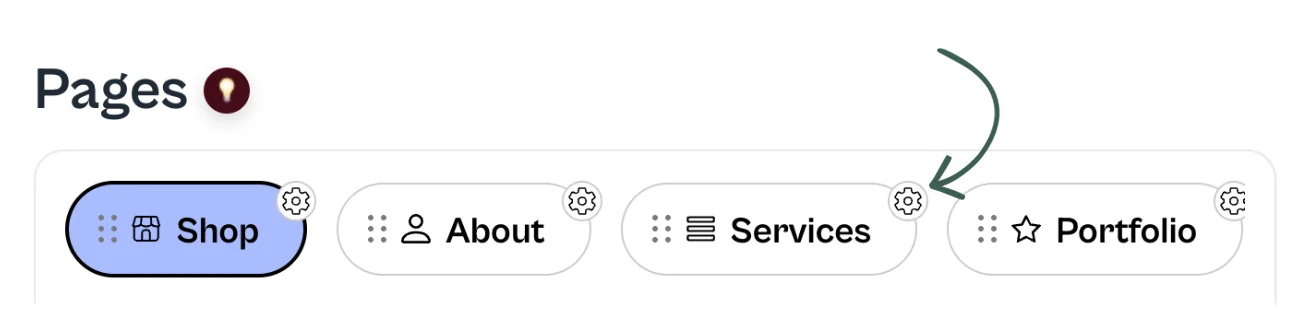
Simply click on the gear icon on any of the pages and you'll have two options:
- Edit name: You can change the name of the tab up to 9 characters.
- Share Link: Once you click, the link is copied and you can paste it anywhere you want.
Services
This is the only one that has a specific nuance. When creating a service you have the option for it to be short with a thumbnail description and send customers to your email or any link of your choosing.
If you do this, you will not be able to individually link the service.
Here's what you need to do to ensure your service is eligible to be shared with a unique URL:
When creating a service, at the bottom you'll see this section ⤵️
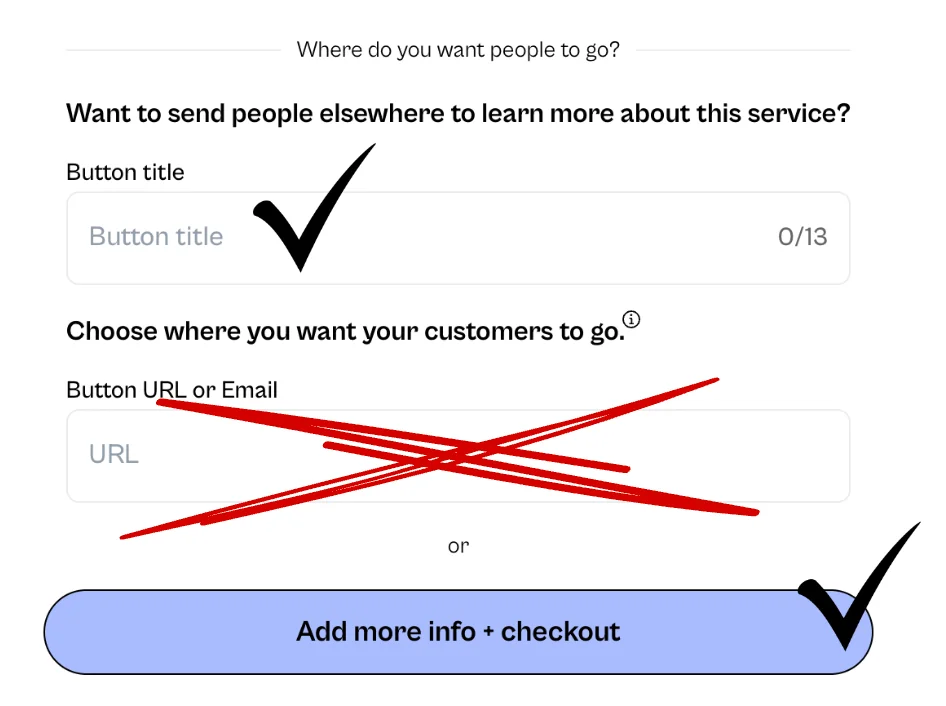
We recommend writing Learn more for the Button title to encourage your potential client to go to the next page.
Next, click the Add more info + checkout button, which gives you the opportunity to:
- Write as much as you'd like
- Individually link testimonials (you'll need to add them to the general Services page first)
- Link externally within the copy
- Add pictures
- Accept payments automatically
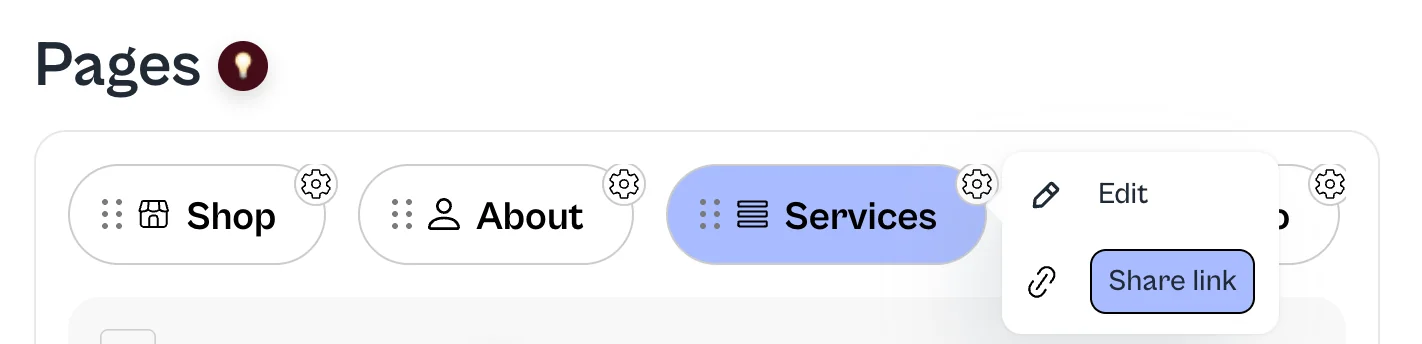
Once you create this page and save, you'll see the option below when you click the corresponding 3 dots.
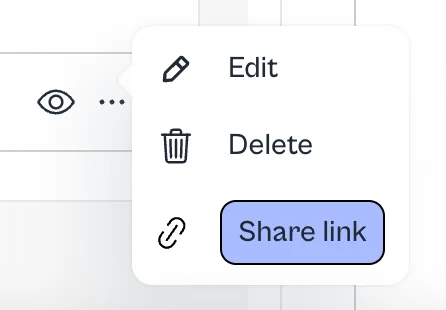
From there, click Share link and you'll be able to share that service directly with customers.
Digital Products and Booking Calendar
The steps to get unique links for digital products and the booking calendar are very easy.
Once you complete the process of setting up your digital products and booking calendar, simply click the corresponding 3 dots and you'll see the button to Share link. Once that is clicked, it's automatically copied and you're ready to share it anywhere you'd like.