The fastest way to add 'Build a Website in a Day' to your services
Four different locations where you can add your contact information on Julip.
We'll be covering 4 different locations where you can add your contact information.
- Social icons
- Pinned bio link
- Additional links
- Portfolio/Desktop Only Button
Social Icons
Under your 'Your Bio' tab you can add your email at the top of your Julip by adding your email under 'YOUR LINKS'. This is the spot where your social media and email will populate at the top of your Julip Bio.
Pinned Bio Link
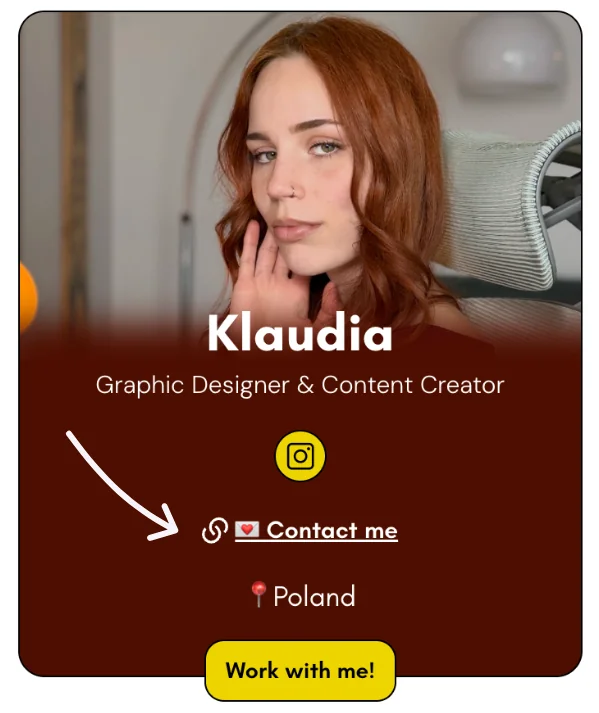
It will looks like this ⤵️ You can only have 1 link in your bio. That makes it extra special 🤩 How to get this pinned bio link…
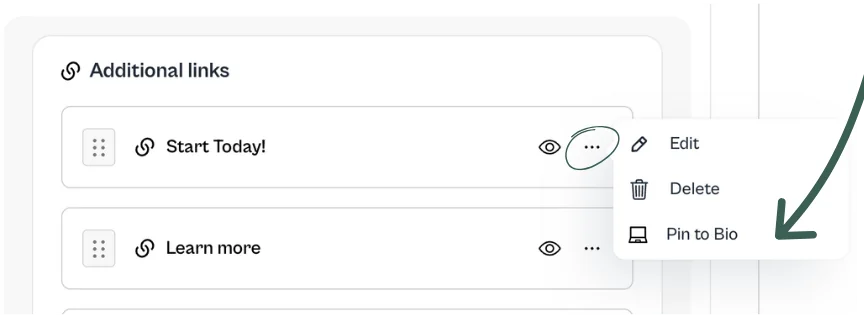
- Go to 'Your Bio' tab
- Scroll down to 'Additional Links'
- Add a new link
- Once the link is added you'll see 3 dots
- You'll see different options and select 'Pin to bio'
- If you no longer want that link pinned, select 'Unpin to Bio'
Additional Links
In the same area where you just created a Pinned Link to your bio. You can have your contact information at the bottom of every tab of your Julip. Think of this like a footer of a website.
Desktop View Only
This is ONLY available in the Portfolio tab. This allows you to share where you're based and pin a contact button.
The contact button seen below ONLY shows up on the desktop
Did you know that…
Desktop is where most brands and agencies check portfolios over mobile!
How to add your location + pin a contact button on desktop like this ⤵️
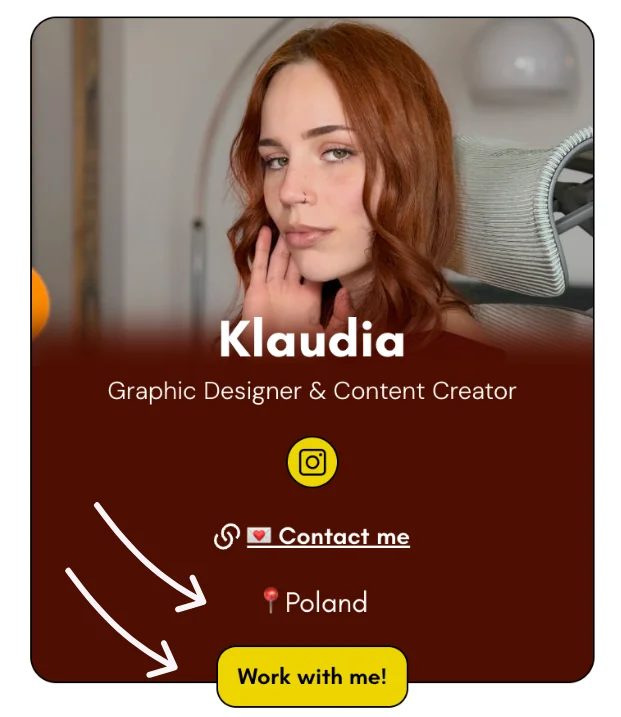
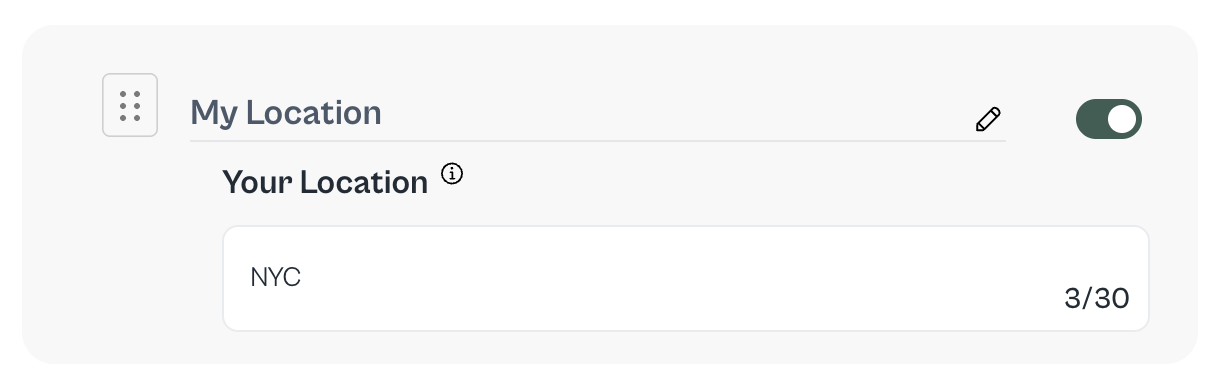
In your portfolio, you'll see this option. You can also update the title 'My location' to anything you want. But that part is for your main Julip portfolio page, not the bio at the top. The part featured at the top will be the location. So in Klaudia's example, she typed in Poland. And in the screenshot of the dashboard I wrote NYC.
To add the 'Work with Me!' button
This is at the very bottom of the portfolio page. You'll scroll to the section that says 'Contact Me' and when you 'Add a New Link' you'll see this option:
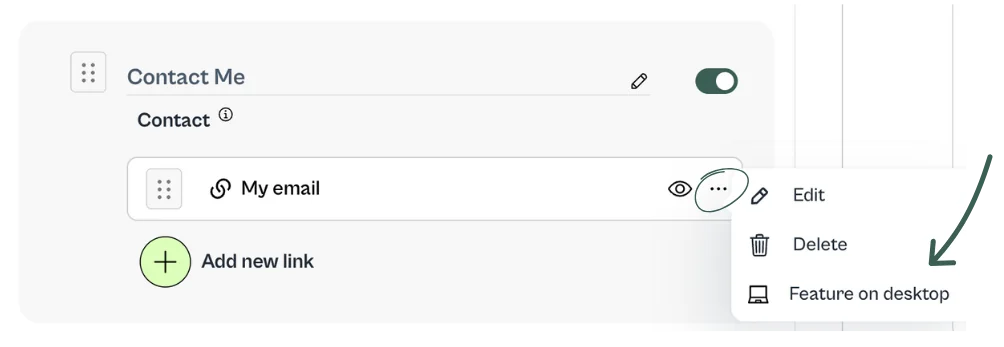
Similar to the pin to bio option, you can only have 1 button added here.